Preset: Removals
Object removal and decluttering for real estate photos
The seller didn't put the dish rack away, a cord is snaking across the floor, and there's a car in the driveway. Object removal fixes it after the shoot. JRAHDR offers several ways to remove things — from one-click decluttering to precise, select-and-erase tools — and even lets you move an item to a better spot.
 BeforeAfter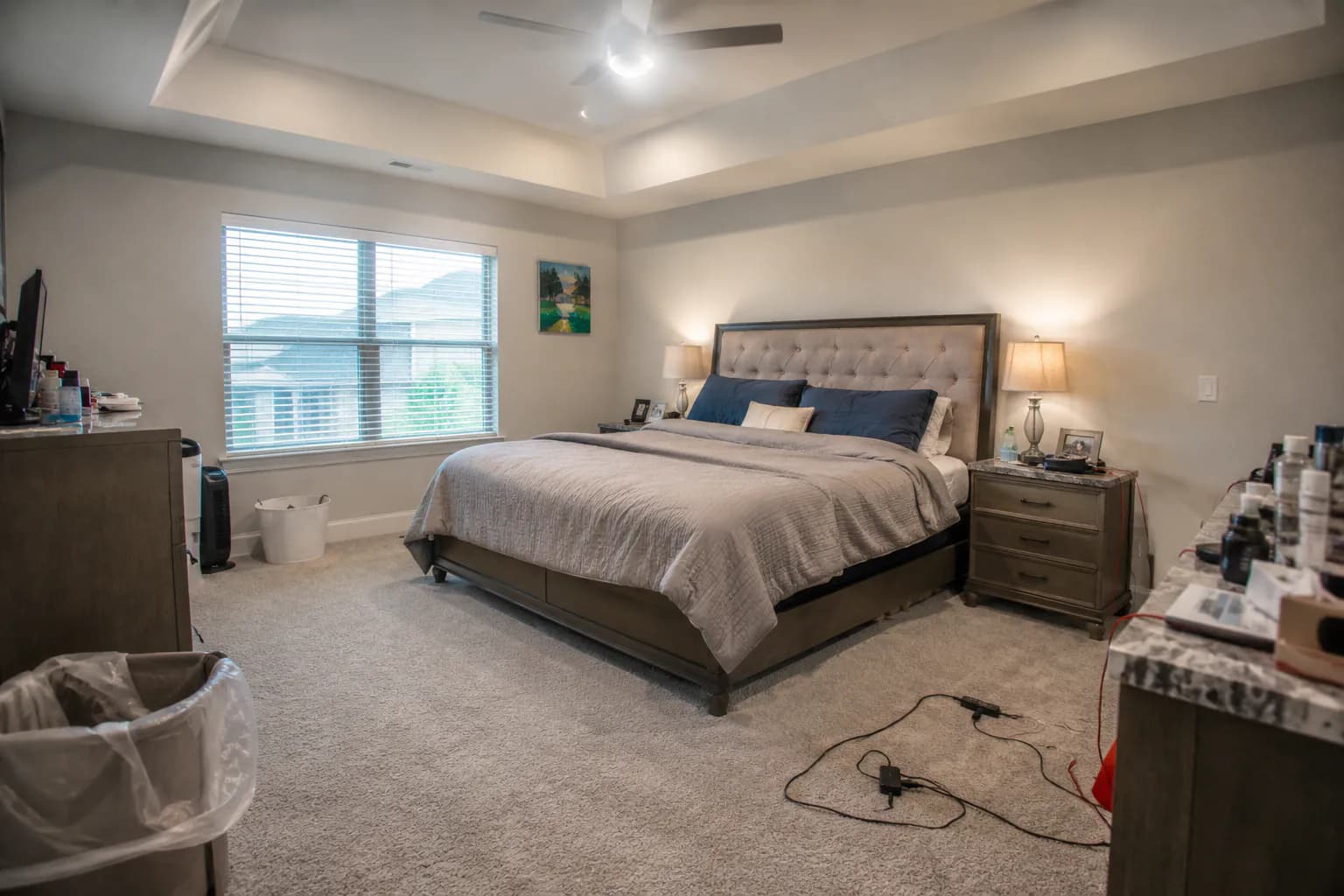
Four ways to remove things
The Removals preset is a one-click declutter: it erases cords, cables, signage, mail, fridge magnets and small personal items while keeping furniture and fixtures in place. Remove Everything goes further and empties the room entirely, reconstructing the floor and walls behind what was there. In the photo studio you can also paint over any area with a brush to remove exactly that, or click objects the editor detects and remove only the ones you select. Or simply type what you want gone — "remove the bin by the garage door" — and the edit removes just that.
How it handles shadows and edges
When you paint a removal, the mask is grown slightly so the object's contact shadow and soft edges go with it — otherwise a removed lamp can leave a ghost of its shadow behind. The area is then filled in to match the surrounding floor, wall or lawn. Click-to-select uses the detected outline of the object, so only the items you chose are touched.
Moving an object
Sometimes the problem isn't that something exists but where it is — a plant blocking a fireplace, a chair in a walkway. The studio can isolate an item, fill in where it was, and place it at a new position in the frame, saved as a new version you can compare against the original.
What to remove (and what not to)
Good candidates: personal photos, toiletries, cords, trash cans, hoses, cars, for-sale signs, small stains and anything temporary. Leave permanent features alone — power lines, neighbouring buildings, cracks, water damage — because buyers will see them in person and removing them can mislead. When in doubt, ask whether the item will still be there on closing day.
Tips
Remove in small, deliberate passes on busy scenes rather than one huge mask; the fill is cleaner when there's plenty of surrounding context. Run removals after HDR so the fill matches the final exposure. To restage an occupied room, run Remove Everything first, then Virtual Staging.
Turnaround and pricing
Each removal takes seconds to about half a minute and is saved as a new version. Start with 10 free edits a month; see pricing for paid per-photo rates. View pricing →
Frequently asked questions
- Can I remove just one specific object?
- Yes. Paint over it with the brush, click it to select it, or type a short description of what to remove. Only that item is erased.
- Can it empty a whole room?
- Yes. Remove Everything clears furniture, rugs, decor and personal items and rebuilds the floor and walls behind them.
- Will it remove the object's shadow too?
- Painted removals are expanded slightly to include contact shadows and soft edges so no outline is left behind.
- Can I get the original back?
- Always. Every removal is a new version; the original photo is never overwritten.
Related features
Virtual Staging
Furnish empty rooms with tasteful furniture — one click or by style.
TV Screen Replacement
Black or distracting screens replaced with a calm nature scene.
Real Estate Photo Editing
The full toolkit for listing photos — HDR, skies, twilights, removals and staging.
Pricing
10 free edits a month, then per-photo plans.