Preset: Virtual Staging
AI virtual staging for empty listings
Empty rooms photograph small and cold, and buyers struggle to judge scale or imagine how a space would live. Virtual staging adds believable furniture and decor to a vacant room while keeping the walls, floors and windows exactly as they are — at a fraction of the cost and time of physical staging.
 BeforeAfter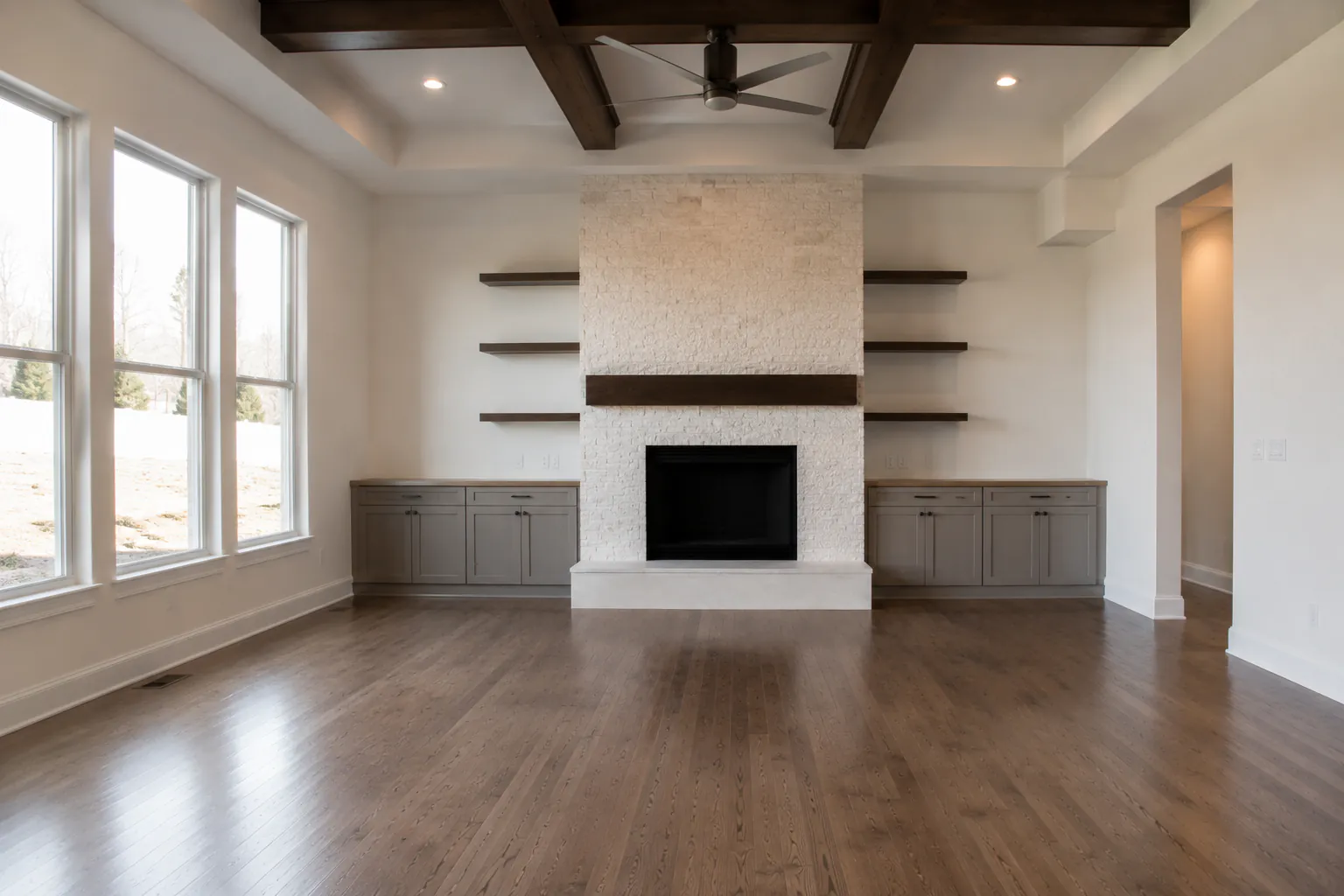
Two ways to stage
The Virtual Staging preset is the fast path: choose it in the Add Atmosphere group and the edit furnishes the room with modern, on-trend pieces appropriate to the room type — a sofa and rug in a living room, a dining set in a dining room, with art, plants and accents kept uncluttered. When you want more control, the Render studio's Furnish mode lets you name a room type and a style (Scandinavian, coastal, modern farmhouse and so on) and set how strictly the original architecture and camera angle are locked.
When to use virtual staging
Stage vacant listings, new construction and rentals between tenants. It is especially useful for awkward or multi-purpose rooms — a bonus room shown as an office, an alcove shown as a reading nook — where buyers need help seeing the use. Stage the rooms that matter most (living, primary bedroom, kitchen dining area) and leave secondary spaces empty but bright.
Staging a furnished room
If the room is occupied with dated or cluttered furniture, empty it first. The Remove Everything preset clears furniture, rugs, decor and personal items and reconstructs the floor and walls behind them. Stage the empty version afterward. Because each edit is saved as a version, you keep the original, the empty room and the staged room side by side.
Tips for believable staging
Start from a bright, level, well-exposed photo — run HDR first if the room is dim. Wide shots from a corner give the stager room to place furniture at a sensible scale. Review each result for scale and placement against doors and windows, and regenerate if something looks off. Stage consistently across a listing so every room feels like the same home.
Disclosure
Virtually staged photos should be labelled as such; many MLSs require it, and some ask that you also include the unstaged photo. Staging should show how a space could be used, never hide defects like damaged flooring or wall cracks.
Turnaround and pricing
A staged room takes about 30 seconds and counts as one edit. Start with 10 free edits a month; paid plans are billed per photo — see pricing for current rates. View pricing →
Frequently asked questions
- Can I choose the furniture style?
- The one-click preset uses a tasteful modern style. For a specific look, use Furnish mode in the Render studio and name the style and room type.
- Can I stage a room that already has furniture?
- Yes — run Remove Everything first to empty the room, then stage the empty version.
- Will the walls, windows or floors change?
- No. Staging is instructed to preserve room layout, walls, floors, windows, doors and architectural details exactly.
- Do I need to disclose virtual staging?
- Usually, yes. Check your MLS rules; labelling staged photos is standard practice.
Related features
Object Removal
Erase clutter, cords, signs or entire rooms of furniture.
Real Estate Photo Editing
The full toolkit for listing photos — HDR, skies, twilights, removals and staging.
Fire in Fireplace
A warm, realistic fire added to any indoor or outdoor fireplace.
Pricing
10 free edits a month, then per-photo plans.